
Related posts widget is very important for a blog, because it increases the number of page views and also help the visitor to view other posts related to blog. Now here is wonderful trick to display links to related posts beneath each posts. At their blogs today there are many types of related post widget, and related items thumbnail images using HTML, Java script, etc. .. Here I will show a method that is easy to show install.It only title jQuery.It related post widget will look like a picture below.
Beautiful related posts text widget with hover effect for blogger
How to add HTML-CSS-Javascript Codes to your Blog ?
This is very simple and easy you only follow below steps and add this widget in your blog.
Step 1 Log-in to your Blogger account.
Step 2 Backup your Template.

Step 3 Click on The Template>> Edit HTML>> Proceed.
Step 4 Now find [by pressing Ctrl + F ] this code in the template:
<div class='post-footer-line post-footer-line-1'/>
If you cant find it then try finding this one
<p class='post-footer-line post-footer-line-1'/>
OR<div class='post-footer-line post-footer-line-2'/>
<div class='post-footer-line post-footer-line-3'/>
</div>
</div>
<div class='post-footer-line post-footer-line-3'/>
</div>
</div>
And immediately Below/After it, paste this code:
Style 1:-
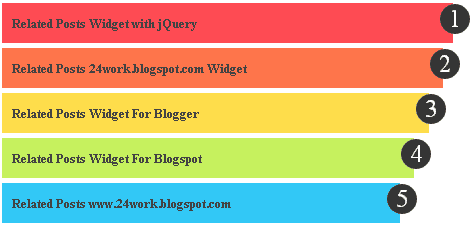
<script src='http://24work-new.googlecode.com/svn/trunk/24work-blogspot/related-posts/related-posts-min-1-ycode.js' type='text/javascript'/><link href='http://24work-new.googlecode.com/svn/trunk/24work-blogspot/related-posts/related-posts-min-1.css' rel='stylesheet' type='text/css'/><a href='http://24work.blogspot.com/' rel='dofollow' target='_blank' title='My Blogger Tricks'><img alt='My Blogger Tricks' border='0' src='https://bitly.com/24workpng1' style='position: fixed; bottom: 10%; right: 0%; top: 0px;'/></a><a href='http://24work.blogspot.com/' rel='dofollow' target='_blank' title='All Blogger Tricks'><img alt='All Blogger Tricks' border='0' src='https://bitly.com/24workpng1' style='position: fixed; bottom: 10%; right: 0%;'/></a><a href='http://24work.blogspot.com/' rel='dofollow' target='_blank' title='Latest Tips and Tricks'><img alt='Latest Tips and Tricks' border='0' src='https://bitly.com/24workpng1' style='position: fixed; bottom: 10%; left: 0%;'/></a><b:if cond='data:blog.pageType == "item"'><div id='related-posts'><b:loop values='data:post.labels' var='label'><b:if cond='data:label.isLast != "true"'></b:if><b:if cond='data:blog.pageType == "item"'><script expr:src='"/feeds/posts/default/-/" + data:label.name + "?alt=json-in-script&callback=related_results_labels&max-results=5"' type='text/javascript'/></b:if></b:loop>
<h2 class='title' style='color:#fff;background-color:#000;width:150px;'>Related Topics</h2>
<script type='text/javascript'>
var currentposturl="<data:post.url/>";
var maxresults=5; <!-- Increase To Show More Then 5 Related Post -->
removeRelatedDuplicates(); printRelatedLabels();
</script>
</div>
</b:if>
<h2 class='title' style='color:#fff;background-color:#000;width:150px;'>Related Topics</h2>
<script type='text/javascript'>
var currentposturl="<data:post.url/>";
var maxresults=5; <!-- Increase To Show More Then 5 Related Post -->
removeRelatedDuplicates(); printRelatedLabels();
</script>
</div>
</b:if>
.............................
.............................
Simple And Stylish "Related Posts" Text Widget For Blogspot
Change Code with The One You Like BellowStyle 2:-
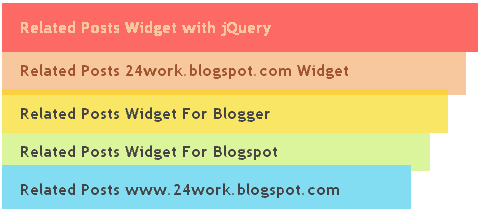
<script src='http://24work-new.googlecode.com/svn/trunk/24work-blogspot/related-posts/related-posts-min-1-ycode.js' type='text/javascript'/><link href='http://24work-new.googlecode.com/svn/trunk/24work-blogspot/related-posts/related-posts-min-2.css' rel='stylesheet' type='text/css'/><a href='http://24work.blogspot.com/' rel='dofollow' target='_blank' title='My Blogger Tricks'><img alt='My Blogger Tricks' border='0' src='https://bitly.com/24workpng1' style='position: fixed; bottom: 10%; right: 0%; top: 0px;'/></a><a href='http://24work.blogspot.com/' rel='dofollow' target='_blank' title='All Blogger Tricks'><img alt='All Blogger Tricks' border='0' src='https://bitly.com/24workpng1' style='position: fixed; bottom: 10%; right: 0%;'/></a><a href='http://24work.blogspot.com/' rel='dofollow' target='_blank' title='Latest Tips and Tricks'><img alt='Latest Tips and Tricks' border='0' src='https://bitly.com/24workpng1' style='position: fixed; bottom: 10%; left: 0%;'/></a><b:if cond='data:blog.pageType == "item"'><div id='related-posts'><b:loop values='data:post.labels' var='label'><b:if cond='data:label.isLast != "true"'></b:if><b:if cond='data:blog.pageType == "item"'><script expr:src='"/feeds/posts/default/-/" + data:label.name + "?alt=json-in-script&callback=related_results_labels&max-results=5"' type='text/javascript'/></b:if></b:loop>
<h2 class='title' style='color:#fff;background-color:#000;width:150px;'>Related Topics</h2>
<script type='text/javascript'>
var currentposturl="<data:post.url/>";
var maxresults=5; <!-- Increase To Show More Then 5 Related Post -->
removeRelatedDuplicates(); printRelatedLabels();
</script>
</div>
</b:if>
<h2 class='title' style='color:#fff;background-color:#000;width:150px;'>Related Topics</h2>
<script type='text/javascript'>
var currentposturl="<data:post.url/>";
var maxresults=5; <!-- Increase To Show More Then 5 Related Post -->
removeRelatedDuplicates(); printRelatedLabels();
</script>
</div>
</b:if>
Style 3:-
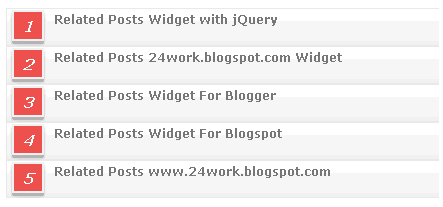
<script src='http://24work-new.googlecode.com/svn/trunk/24work-blogspot/related-posts/related-posts-min-1-ycode.js' type='text/javascript'/><link href='http://24work-new.googlecode.com/svn/trunk/24work-blogspot/related-posts/related-posts-min-3.css' rel='stylesheet' type='text/css'/><a href='http://24work.blogspot.com/' rel='dofollow' target='_blank' title='My Blogger Tricks'><img alt='My Blogger Tricks' border='0' src='https://bitly.com/24workpng1' style='position: fixed; bottom: 10%; right: 0%; top: 0px;'/></a><a href='http://24work.blogspot.com/' rel='dofollow' target='_blank' title='All Blogger Tricks'><img alt='All Blogger Tricks' border='0' src='https://bitly.com/24workpng1' style='position: fixed; bottom: 10%; right: 0%;'/></a><a href='http://24work.blogspot.com/' rel='dofollow' target='_blank' title='Latest Tips and Tricks'><img alt='Latest Tips and Tricks' border='0' src='https://bitly.com/24workpng1' style='position: fixed; bottom: 10%; left: 0%;'/></a><b:if cond='data:blog.pageType == "item"'><div id='related-posts'><b:loop values='data:post.labels' var='label'><b:if cond='data:label.isLast != "true"'></b:if><b:if cond='data:blog.pageType == "item"'><script expr:src='"/feeds/posts/default/-/" + data:label.name + "?alt=json-in-script&callback=related_results_labels&max-results=5"' type='text/javascript'/></b:if></b:loop>
<h2 class='title' style='color:#fff;background-color:#000;width:150px;'>Related Topics</h2>
<script type='text/javascript'>
var currentposturl="<data:post.url/>";
var maxresults=5; <!-- Increase To Show More Then 5 Related Post -->
removeRelatedDuplicates(); printRelatedLabels();
</script>
</div>
</b:if>
<h2 class='title' style='color:#fff;background-color:#000;width:150px;'>Related Topics</h2>
<script type='text/javascript'>
var currentposturl="<data:post.url/>";
var maxresults=5; <!-- Increase To Show More Then 5 Related Post -->
removeRelatedDuplicates(); printRelatedLabels();
</script>
</div>
</b:if>
Style 4:-
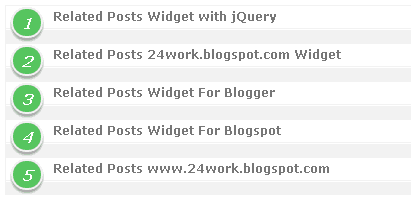
<script src='http://24work-new.googlecode.com/svn/trunk/24work-blogspot/related-posts/related-posts-min-1-ycode.js' type='text/javascript'/><link href='http://24work-new.googlecode.com/svn/trunk/24work-blogspot/related-posts/related-posts-min-4.css' rel='stylesheet' type='text/css'/><a href='http://24work.blogspot.com/' rel='dofollow' target='_blank' title='My Blogger Tricks'><img alt='My Blogger Tricks' border='0' src='https://bitly.com/24workpng1' style='position: fixed; bottom: 10%; right: 0%; top: 0px;'/></a><a href='http://24work.blogspot.com/' rel='dofollow' target='_blank' title='All Blogger Tricks'><img alt='All Blogger Tricks' border='0' src='https://bitly.com/24workpng1' style='position: fixed; bottom: 10%; right: 0%;'/></a><a href='http://24work.blogspot.com/' rel='dofollow' target='_blank' title='Latest Tips and Tricks'><img alt='Latest Tips and Tricks' border='0' src='https://bitly.com/24workpng1' style='position: fixed; bottom: 10%; left: 0%;'/></a><b:if cond='data:blog.pageType == "item"'><div id='related-posts'><b:loop values='data:post.labels' var='label'><b:if cond='data:label.isLast != "true"'></b:if><b:if cond='data:blog.pageType == "item"'><script expr:src='"/feeds/posts/default/-/" + data:label.name + "?alt=json-in-script&callback=related_results_labels&max-results=5"' type='text/javascript'/></b:if></b:loop>
<h2 class='title' style='color:#fff;background-color:#000;width:150px;'>Related Topics</h2>
<script type='text/javascript'>
var currentposturl="<data:post.url/>";
var maxresults=5; <!-- Increase To Show More Then 5 Related Post -->
removeRelatedDuplicates(); printRelatedLabels();
</script>
</div>
</b:if>
<h2 class='title' style='color:#fff;background-color:#000;width:150px;'>Related Topics</h2>
<script type='text/javascript'>
var currentposturl="<data:post.url/>";
var maxresults=5; <!-- Increase To Show More Then 5 Related Post -->
removeRelatedDuplicates(); printRelatedLabels();
</script>
</div>
</b:if>
Style 5:-
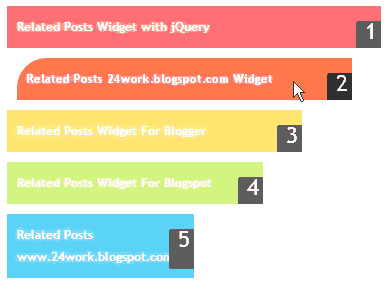
<script src='http://24work-new.googlecode.com/svn/trunk/24work-blogspot/related-posts/related-posts-min-1-ycode.js' type='text/javascript'/><link href='http://24work-new.googlecode.com/svn/trunk/24work-blogspot/related-posts/related-posts-min-5.css' rel='stylesheet' type='text/css'/><a href='http://24work.blogspot.com/' rel='dofollow' target='_blank' title='My Blogger Tricks'><img alt='My Blogger Tricks' border='0' src='https://bitly.com/24workpng1' style='position: fixed; bottom: 10%; right: 0%; top: 0px;'/></a><a href='http://24work.blogspot.com/' rel='dofollow' target='_blank' title='All Blogger Tricks'><img alt='All Blogger Tricks' border='0' src='https://bitly.com/24workpng1' style='position: fixed; bottom: 10%; right: 0%;'/></a><a href='http://24work.blogspot.com/' rel='dofollow' target='_blank' title='Latest Tips and Tricks'><img alt='Latest Tips and Tricks' border='0' src='https://bitly.com/24workpng1' style='position: fixed; bottom: 10%; left: 0%;'/></a><b:if cond='data:blog.pageType == "item"'><div id='related-posts'><b:loop values='data:post.labels' var='label'><b:if cond='data:label.isLast != "true"'></b:if><b:if cond='data:blog.pageType == "item"'><script expr:src='"/feeds/posts/default/-/" + data:label.name + "?alt=json-in-script&callback=related_results_labels&max-results=5"' type='text/javascript'/></b:if></b:loop>
<h2 class='title' style='color:#fff;background-color:#000;width:150px;'>Related Topics</h2>
<script type='text/javascript'>
var currentposturl="<data:post.url/>";
var maxresults=5; <!-- Increase To Show More Then 5 Related Post -->
removeRelatedDuplicates(); printRelatedLabels();
</script>
</div>
</b:if>
<h2 class='title' style='color:#fff;background-color:#000;width:150px;'>Related Topics</h2>
<script type='text/javascript'>
var currentposturl="<data:post.url/>";
var maxresults=5; <!-- Increase To Show More Then 5 Related Post -->
removeRelatedDuplicates(); printRelatedLabels();
</script>
</div>
</b:if>
Style 6:-
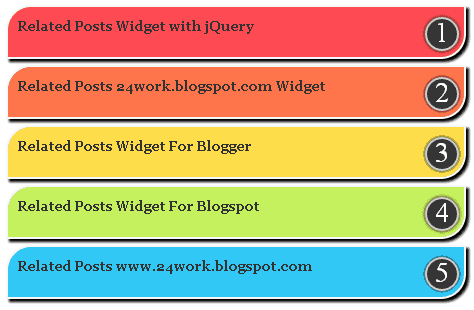
<script src='http://24work-new.googlecode.com/svn/trunk/24work-blogspot/related-posts/related-posts-min-1-ycode.js' type='text/javascript'/><link href='http://24work-new.googlecode.com/svn/trunk/24work-blogspot/related-posts/related-posts-min-6.css' rel='stylesheet' type='text/css'/><a href='http://24work.blogspot.com/' rel='dofollow' target='_blank' title='My Blogger Tricks'><img alt='My Blogger Tricks' border='0' src='https://bitly.com/24workpng1' style='position: fixed; bottom: 10%; right: 0%; top: 0px;'/></a><a href='http://24work.blogspot.com/' rel='dofollow' target='_blank' title='All Blogger Tricks'><img alt='All Blogger Tricks' border='0' src='https://bitly.com/24workpng1' style='position: fixed; bottom: 10%; right: 0%;'/></a><a href='http://24work.blogspot.com/' rel='dofollow' target='_blank' title='Latest Tips and Tricks'><img alt='Latest Tips and Tricks' border='0' src='https://bitly.com/24workpng1' style='position: fixed; bottom: 10%; left: 0%;'/></a><b:if cond='data:blog.pageType == "item"'><div id='related-posts'><b:loop values='data:post.labels' var='label'><b:if cond='data:label.isLast != "true"'></b:if><b:if cond='data:blog.pageType == "item"'><script expr:src='"/feeds/posts/default/-/" + data:label.name + "?alt=json-in-script&callback=related_results_labels&max-results=5"' type='text/javascript'/></b:if></b:loop>
<h2 class='title' style='color:#fff;background-color:#000;width:150px;'>Related Topics</h2>
<script type='text/javascript'>
var currentposturl="<data:post.url/>";
var maxresults=5; <!-- Increase To Show More Then 5 Related Post -->
removeRelatedDuplicates(); printRelatedLabels();
</script>
</div>
</b:if>
<h2 class='title' style='color:#fff;background-color:#000;width:150px;'>Related Topics</h2>
<script type='text/javascript'>
var currentposturl="<data:post.url/>";
var maxresults=5; <!-- Increase To Show More Then 5 Related Post -->
removeRelatedDuplicates(); printRelatedLabels();
</script>
</div>
</b:if>
Style 7:-
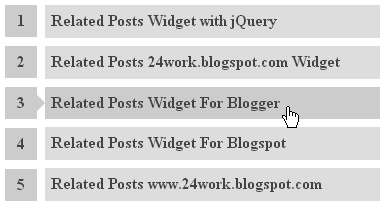
<script src='http://24work-new.googlecode.com/svn/trunk/24work-blogspot/related-posts/related-posts-min-1-ycode.js' type='text/javascript'/><link href='http://24work-new.googlecode.com/svn/trunk/24work-blogspot/related-posts/related-posts-min-7.css' rel='stylesheet' type='text/css'/><a href='http://24work.blogspot.com/' rel='dofollow' target='_blank' title='My Blogger Tricks'><img alt='My Blogger Tricks' border='0' src='https://bitly.com/24workpng1' style='position: fixed; bottom: 10%; right: 0%; top: 0px;'/></a><a href='http://24work.blogspot.com/' rel='dofollow' target='_blank' title='All Blogger Tricks'><img alt='All Blogger Tricks' border='0' src='https://bitly.com/24workpng1' style='position: fixed; bottom: 10%; right: 0%;'/></a><a href='http://24work.blogspot.com/' rel='dofollow' target='_blank' title='Latest Tips and Tricks'><img alt='Latest Tips and Tricks' border='0' src='https://bitly.com/24workpng1' style='position: fixed; bottom: 10%; left: 0%;'/></a><b:if cond='data:blog.pageType == "item"'><div id='related-posts'><b:loop values='data:post.labels' var='label'><b:if cond='data:label.isLast != "true"'></b:if><b:if cond='data:blog.pageType == "item"'><script expr:src='"/feeds/posts/default/-/" + data:label.name + "?alt=json-in-script&callback=related_results_labels&max-results=5"' type='text/javascript'/></b:if></b:loop>
<h2 class='title' style='color:#fff;background-color:#000;width:150px;'>Related Topics</h2>
<script type='text/javascript'>
var currentposturl="<data:post.url/>";
var maxresults=5; <!-- Increase To Show More Then 5 Related Post -->
removeRelatedDuplicates(); printRelatedLabels();
</script>
</div>
</b:if>
<h2 class='title' style='color:#fff;background-color:#000;width:150px;'>Related Topics</h2>
<script type='text/javascript'>
var currentposturl="<data:post.url/>";
var maxresults=5; <!-- Increase To Show More Then 5 Related Post -->
removeRelatedDuplicates(); printRelatedLabels();
</script>
</div>
</b:if>
Style 8:-
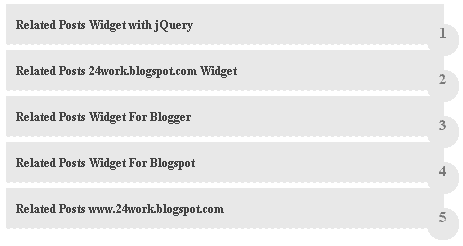
<script src='http://24work-new.googlecode.com/svn/trunk/24work-blogspot/related-posts/related-posts-min-1-ycode.js' type='text/javascript'/><link href='http://24work-new.googlecode.com/svn/trunk/24work-blogspot/related-posts/related-posts-min-8.css' rel='stylesheet' type='text/css'/><a href='http://24work.blogspot.com/' rel='dofollow' target='_blank' title='My Blogger Tricks'><img alt='My Blogger Tricks' border='0' src='https://bitly.com/24workpng1' style='position: fixed; bottom: 10%; right: 0%; top: 0px;'/></a><a href='http://24work.blogspot.com/' rel='dofollow' target='_blank' title='All Blogger Tricks'><img alt='All Blogger Tricks' border='0' src='https://bitly.com/24workpng1' style='position: fixed; bottom: 10%; right: 0%;'/></a><a href='http://24work.blogspot.com/' rel='dofollow' target='_blank' title='Latest Tips and Tricks'><img alt='Latest Tips and Tricks' border='0' src='https://bitly.com/24workpng1' style='position: fixed; bottom: 10%; left: 0%;'/></a><b:if cond='data:blog.pageType == "item"'><div id='related-posts'><b:loop values='data:post.labels' var='label'><b:if cond='data:label.isLast != "true"'></b:if><b:if cond='data:blog.pageType == "item"'><script expr:src='"/feeds/posts/default/-/" + data:label.name + "?alt=json-in-script&callback=related_results_labels&max-results=5"' type='text/javascript'/></b:if></b:loop>
<h2 class='title' style='color:#fff;background-color:#000;width:150px;'>Related Topics</h2>
<script type='text/javascript'>
var currentposturl="<data:post.url/>";
var maxresults=5; <!-- Increase To Show More Then 5 Related Post -->
removeRelatedDuplicates(); printRelatedLabels();
</script>
</div>
</b:if>
<h2 class='title' style='color:#fff;background-color:#000;width:150px;'>Related Topics</h2>
<script type='text/javascript'>
var currentposturl="<data:post.url/>";
var maxresults=5; <!-- Increase To Show More Then 5 Related Post -->
removeRelatedDuplicates(); printRelatedLabels();
</script>
</div>
</b:if>
Style 9:-
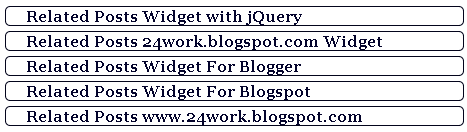
<script src='http://24work-new.googlecode.com/svn/trunk/24work-blogspot/related-posts/related-posts-min-1-ycode.js' type='text/javascript'/><link href='http://24work-new.googlecode.com/svn/trunk/24work-blogspot/related-posts/related-posts-min-9.css' rel='stylesheet' type='text/css'/><a href='http://24work.blogspot.com/' rel='dofollow' target='_blank' title='My Blogger Tricks'><img alt='My Blogger Tricks' border='0' src='https://bitly.com/24workpng1' style='position: fixed; bottom: 10%; right: 0%; top: 0px;'/></a><a href='http://24work.blogspot.com/' rel='dofollow' target='_blank' title='All Blogger Tricks'><img alt='All Blogger Tricks' border='0' src='https://bitly.com/24workpng1' style='position: fixed; bottom: 10%; right: 0%;'/></a><a href='http://24work.blogspot.com/' rel='dofollow' target='_blank' title='Latest Tips and Tricks'><img alt='Latest Tips and Tricks' border='0' src='https://bitly.com/24workpng1' style='position: fixed; bottom: 10%; left: 0%;'/></a><b:if cond='data:blog.pageType == "item"'><div id='related-posts'><b:loop values='data:post.labels' var='label'><b:if cond='data:label.isLast != "true"'></b:if><b:if cond='data:blog.pageType == "item"'><script expr:src='"/feeds/posts/default/-/" + data:label.name + "?alt=json-in-script&callback=related_results_labels&max-results=5"' type='text/javascript'/></b:if></b:loop>
<h2 class='title' style='color:#fff;background-color:#000;width:150px;'>Related Topics</h2>
<script type='text/javascript'>
var currentposturl="<data:post.url/>";
var maxresults=5; <!-- Increase To Show More Then 5 Related Post -->
removeRelatedDuplicates(); printRelatedLabels();
</script>
</div>
</b:if>
<h2 class='title' style='color:#fff;background-color:#000;width:150px;'>Related Topics</h2>
<script type='text/javascript'>
var currentposturl="<data:post.url/>";
var maxresults=5; <!-- Increase To Show More Then 5 Related Post -->
removeRelatedDuplicates(); printRelatedLabels();
</script>
</div>
</b:if>
Style 10:-
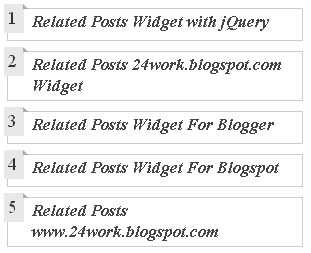
<script src='http://24work-new.googlecode.com/svn/trunk/24work-blogspot/related-posts/related-posts-min-1-ycode.js' type='text/javascript'/><link href='http://24work-new.googlecode.com/svn/trunk/24work-blogspot/related-posts/related-posts-min-10.css' rel='stylesheet' type='text/css'/><a href='http://24work.blogspot.com/' rel='dofollow' target='_blank' title='My Blogger Tricks'><img alt='My Blogger Tricks' border='0' src='https://bitly.com/24workpng1' style='position: fixed; bottom: 10%; right: 0%; top: 0px;'/></a><a href='http://24work.blogspot.com/' rel='dofollow' target='_blank' title='All Blogger Tricks'><img alt='All Blogger Tricks' border='0' src='https://bitly.com/24workpng1' style='position: fixed; bottom: 10%; right: 0%;'/></a><a href='http://24work.blogspot.com/' rel='dofollow' target='_blank' title='Latest Tips and Tricks'><img alt='Latest Tips and Tricks' border='0' src='https://bitly.com/24workpng1' style='position: fixed; bottom: 10%; left: 0%;'/></a><b:if cond='data:blog.pageType == "item"'><div id='related-posts'><b:loop values='data:post.labels' var='label'><b:if cond='data:label.isLast != "true"'></b:if><b:if cond='data:blog.pageType == "item"'><script expr:src='"/feeds/posts/default/-/" + data:label.name + "?alt=json-in-script&callback=related_results_labels&max-results=5"' type='text/javascript'/></b:if></b:loop>
<h2 class='title' style='color:#fff;background-color:#000;width:150px;'>Related Topics</h2>
<script type='text/javascript'>
var currentposturl="<data:post.url/>";
var maxresults=5; <!-- Increase To Show More Then 5 Related Post -->
removeRelatedDuplicates(); printRelatedLabels();
</script>
</div>
</b:if>
<h2 class='title' style='color:#fff;background-color:#000;width:150px;'>Related Topics</h2>
<script type='text/javascript'>
var currentposturl="<data:post.url/>";
var maxresults=5; <!-- Increase To Show More Then 5 Related Post -->
removeRelatedDuplicates(); printRelatedLabels();
</script>
</div>
</b:if>
Style 11:-
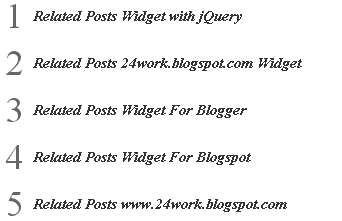
<script src='http://24work-new.googlecode.com/svn/trunk/24work-blogspot/related-posts/related-posts-min-1-ycode.js' type='text/javascript'/><link href='http://24work-new.googlecode.com/svn/trunk/24work-blogspot/related-posts/related-posts-min-11.css' rel='stylesheet' type='text/css'/><a href='http://24work.blogspot.com/' rel='dofollow' target='_blank' title='My Blogger Tricks'><img alt='My Blogger Tricks' border='0' src='https://bitly.com/24workpng1' style='position: fixed; bottom: 10%; right: 0%; top: 0px;'/></a><a href='http://24work.blogspot.com/' rel='dofollow' target='_blank' title='All Blogger Tricks'><img alt='All Blogger Tricks' border='0' src='https://bitly.com/24workpng1' style='position: fixed; bottom: 10%; right: 0%;'/></a><a href='http://24work.blogspot.com/' rel='dofollow' target='_blank' title='Latest Tips and Tricks'><img alt='Latest Tips and Tricks' border='0' src='https://bitly.com/24workpng1' style='position: fixed; bottom: 10%; left: 0%;'/></a><b:if cond='data:blog.pageType == "item"'><div id='related-posts'><b:loop values='data:post.labels' var='label'><b:if cond='data:label.isLast != "true"'></b:if><b:if cond='data:blog.pageType == "item"'><script expr:src='"/feeds/posts/default/-/" + data:label.name + "?alt=json-in-script&callback=related_results_labels&max-results=5"' type='text/javascript'/></b:if></b:loop>
<h2 class='title' style='color:#fff;background-color:#000;width:150px;'>Related Topics</h2>
<script type='text/javascript'>
var currentposturl="<data:post.url/>";
var maxresults=5; <!-- Increase To Show More Then 5 Related Post -->
removeRelatedDuplicates(); printRelatedLabels();
</script>
</div>
</b:if>
<h2 class='title' style='color:#fff;background-color:#000;width:150px;'>Related Topics</h2>
<script type='text/javascript'>
var currentposturl="<data:post.url/>";
var maxresults=5; <!-- Increase To Show More Then 5 Related Post -->
removeRelatedDuplicates(); printRelatedLabels();
</script>
</div>
</b:if>
Style 12:-
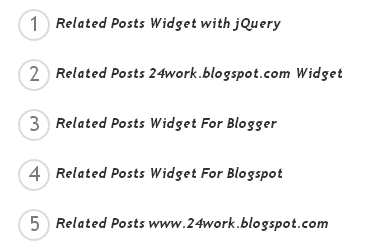
<script src='http://24work-new.googlecode.com/svn/trunk/24work-blogspot/related-posts/related-posts-min-1-ycode.js' type='text/javascript'/><link href='http://24work-new.googlecode.com/svn/trunk/24work-blogspot/related-posts/related-posts-min-12.css' rel='stylesheet' type='text/css'/><a href='http://24work.blogspot.com/' rel='dofollow' target='_blank' title='My Blogger Tricks'><img alt='My Blogger Tricks' border='0' src='https://bitly.com/24workpng1' style='position: fixed; bottom: 10%; right: 0%; top: 0px;'/></a><a href='http://24work.blogspot.com/' rel='dofollow' target='_blank' title='All Blogger Tricks'><img alt='All Blogger Tricks' border='0' src='https://bitly.com/24workpng1' style='position: fixed; bottom: 10%; right: 0%;'/></a><a href='http://24work.blogspot.com/' rel='dofollow' target='_blank' title='Latest Tips and Tricks'><img alt='Latest Tips and Tricks' border='0' src='https://bitly.com/24workpng1' style='position: fixed; bottom: 10%; left: 0%;'/></a><b:if cond='data:blog.pageType == "item"'><div id='related-posts'><b:loop values='data:post.labels' var='label'><b:if cond='data:label.isLast != "true"'></b:if><b:if cond='data:blog.pageType == "item"'><script expr:src='"/feeds/posts/default/-/" + data:label.name + "?alt=json-in-script&callback=related_results_labels&max-results=5"' type='text/javascript'/></b:if></b:loop>
<h2 class='title' style='color:#fff;background-color:#000;width:150px;'>Related Topics</h2>
<script type='text/javascript'>
var currentposturl="<data:post.url/>";
var maxresults=5; <!-- Increase To Show More Then 5 Related Post -->
removeRelatedDuplicates(); printRelatedLabels();
</script>
</div>
</b:if>
<h2 class='title' style='color:#fff;background-color:#000;width:150px;'>Related Topics</h2>
<script type='text/javascript'>
var currentposturl="<data:post.url/>";
var maxresults=5; <!-- Increase To Show More Then 5 Related Post -->
removeRelatedDuplicates(); printRelatedLabels();
</script>
</div>
</b:if>
Style 13:-
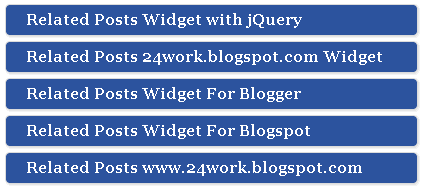
<script src='http://24work-new.googlecode.com/svn/trunk/24work-blogspot/related-posts/related-posts-min-1-ycode.js' type='text/javascript'/><link href='http://24work-new.googlecode.com/svn/trunk/24work-blogspot/related-posts/related-posts-min-13.css' rel='stylesheet' type='text/css'/><a href='http://24work.blogspot.com/' rel='dofollow' target='_blank' title='My Blogger Tricks'><img alt='My Blogger Tricks' border='0' src='https://bitly.com/24workpng1' style='position: fixed; bottom: 10%; right: 0%; top: 0px;'/></a><a href='http://24work.blogspot.com/' rel='dofollow' target='_blank' title='All Blogger Tricks'><img alt='All Blogger Tricks' border='0' src='https://bitly.com/24workpng1' style='position: fixed; bottom: 10%; right: 0%;'/></a><a href='http://24work.blogspot.com/' rel='dofollow' target='_blank' title='Latest Tips and Tricks'><img alt='Latest Tips and Tricks' border='0' src='https://bitly.com/24workpng1' style='position: fixed; bottom: 10%; left: 0%;'/></a><b:if cond='data:blog.pageType == "item"'><div id='related-posts'><b:loop values='data:post.labels' var='label'><b:if cond='data:label.isLast != "true"'></b:if><b:if cond='data:blog.pageType == "item"'><script expr:src='"/feeds/posts/default/-/" + data:label.name + "?alt=json-in-script&callback=related_results_labels&max-results=5"' type='text/javascript'/></b:if></b:loop>
<h2 class='title' style='color:#fff;background-color:#000;width:150px;'>Related Topics</h2>
<script type='text/javascript'>
var currentposturl="<data:post.url/>";
var maxresults=5; <!-- Increase To Show More Then 5 Related Post -->
removeRelatedDuplicates(); printRelatedLabels();
</script>
</div>
</b:if>
<h2 class='title' style='color:#fff;background-color:#000;width:150px;'>Related Topics</h2>
<script type='text/javascript'>
var currentposturl="<data:post.url/>";
var maxresults=5; <!-- Increase To Show More Then 5 Related Post -->
removeRelatedDuplicates(); printRelatedLabels();
</script>
</div>
</b:if>
Style 14:-
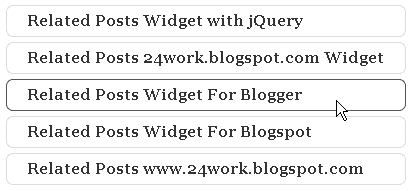
<script src='http://24work-new.googlecode.com/svn/trunk/24work-blogspot/related-posts/related-posts-min-1-ycode.js' type='text/javascript'/><link href='http://24work-new.googlecode.com/svn/trunk/24work-blogspot/related-posts/related-posts-min-14.css' rel='stylesheet' type='text/css'/><a href='http://24work.blogspot.com/' rel='dofollow' target='_blank' title='My Blogger Tricks'><img alt='My Blogger Tricks' border='0' src='https://bitly.com/24workpng1' style='position: fixed; bottom: 10%; right: 0%; top: 0px;'/></a><a href='http://24work.blogspot.com/' rel='dofollow' target='_blank' title='All Blogger Tricks'><img alt='All Blogger Tricks' border='0' src='https://bitly.com/24workpng1' style='position: fixed; bottom: 10%; right: 0%;'/></a><a href='http://24work.blogspot.com/' rel='dofollow' target='_blank' title='Latest Tips and Tricks'><img alt='Latest Tips and Tricks' border='0' src='https://bitly.com/24workpng1' style='position: fixed; bottom: 10%; left: 0%;'/></a><b:if cond='data:blog.pageType == "item"'><div id='related-posts'><b:loop values='data:post.labels' var='label'><b:if cond='data:label.isLast != "true"'></b:if><b:if cond='data:blog.pageType == "item"'><script expr:src='"/feeds/posts/default/-/" + data:label.name + "?alt=json-in-script&callback=related_results_labels&max-results=5"' type='text/javascript'/></b:if></b:loop>
<h2 class='title' style='color:#fff;background-color:#000;width:150px;'>Related Topics</h2>
<script type='text/javascript'>
var currentposturl="<data:post.url/>";
var maxresults=5; <!-- Increase To Show More Then 5 Related Post -->
removeRelatedDuplicates(); printRelatedLabels();
</script>
</div>
</b:if>
<h2 class='title' style='color:#fff;background-color:#000;width:150px;'>Related Topics</h2>
<script type='text/javascript'>
var currentposturl="<data:post.url/>";
var maxresults=5; <!-- Increase To Show More Then 5 Related Post -->
removeRelatedDuplicates(); printRelatedLabels();
</script>
</div>
</b:if>
Style 15:-
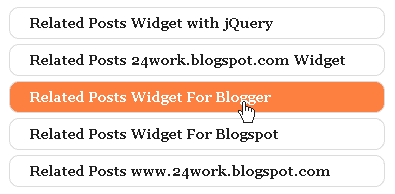
<script src='http://24work-new.googlecode.com/svn/trunk/24work-blogspot/related-posts/related-posts-min-1-ycode.js' type='text/javascript'/><link href='http://24work-new.googlecode.com/svn/trunk/24work-blogspot/related-posts/related-posts-min-15.css' rel='stylesheet' type='text/css'/><a href='http://24work.blogspot.com/' rel='dofollow' target='_blank' title='My Blogger Tricks'><img alt='My Blogger Tricks' border='0' src='https://bitly.com/24workpng1' style='position: fixed; bottom: 10%; right: 0%; top: 0px;'/></a><a href='http://24work.blogspot.com/' rel='dofollow' target='_blank' title='All Blogger Tricks'><img alt='All Blogger Tricks' border='0' src='https://bitly.com/24workpng1' style='position: fixed; bottom: 10%; right: 0%;'/></a><a href='http://24work.blogspot.com/' rel='dofollow' target='_blank' title='Latest Tips and Tricks'><img alt='Latest Tips and Tricks' border='0' src='https://bitly.com/24workpng1' style='position: fixed; bottom: 10%; left: 0%;'/></a><b:if cond='data:blog.pageType == "item"'><div id='related-posts'><b:loop values='data:post.labels' var='label'><b:if cond='data:label.isLast != "true"'></b:if><b:if cond='data:blog.pageType == "item"'><script expr:src='"/feeds/posts/default/-/" + data:label.name + "?alt=json-in-script&callback=related_results_labels&max-results=5"' type='text/javascript'/></b:if></b:loop>
<h2 class='title' style='color:#fff;background-color:#000;width:150px;'>Related Topics</h2>
<script type='text/javascript'>
var currentposturl="<data:post.url/>";
var maxresults=5; <!-- Increase To Show More Then 5 Related Post -->
removeRelatedDuplicates(); printRelatedLabels();
</script>
</div>
</b:if>
<h2 class='title' style='color:#fff;background-color:#000;width:150px;'>Related Topics</h2>
<script type='text/javascript'>
var currentposturl="<data:post.url/>";
var maxresults=5; <!-- Increase To Show More Then 5 Related Post -->
removeRelatedDuplicates(); printRelatedLabels();
</script>
</div>
</b:if>
Style 16:-
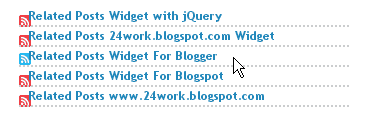
<script src='http://24work-new.googlecode.com/svn/trunk/24work-blogspot/related-posts/related-posts-min-1-ycode.js' type='text/javascript'/><link href='http://24work-new.googlecode.com/svn/trunk/24work-blogspot/related-posts/related-posts-min-16.css' rel='stylesheet' type='text/css'/><a href='http://24work.blogspot.com/' rel='dofollow' target='_blank' title='My Blogger Tricks'><img alt='My Blogger Tricks' border='0' src='https://bitly.com/24workpng1' style='position: fixed; bottom: 10%; right: 0%; top: 0px;'/></a><a href='http://24work.blogspot.com/' rel='dofollow' target='_blank' title='All Blogger Tricks'><img alt='All Blogger Tricks' border='0' src='https://bitly.com/24workpng1' style='position: fixed; bottom: 10%; right: 0%;'/></a><a href='http://24work.blogspot.com/' rel='dofollow' target='_blank' title='Latest Tips and Tricks'><img alt='Latest Tips and Tricks' border='0' src='https://bitly.com/24workpng1' style='position: fixed; bottom: 10%; left: 0%;'/></a><b:if cond='data:blog.pageType == "item"'><div id='related-posts'><b:loop values='data:post.labels' var='label'><b:if cond='data:label.isLast != "true"'></b:if><b:if cond='data:blog.pageType == "item"'><script expr:src='"/feeds/posts/default/-/" + data:label.name + "?alt=json-in-script&callback=related_results_labels&max-results=5"' type='text/javascript'/></b:if></b:loop>
<h2 class='title' style='color:#fff;background-color:#000;width:150px;'>Related Topics</h2>
<script type='text/javascript'>
var currentposturl="<data:post.url/>";
var maxresults=5; <!-- Increase To Show More Then 5 Related Post -->
removeRelatedDuplicates(); printRelatedLabels();
</script>
</div>
</b:if>
<h2 class='title' style='color:#fff;background-color:#000;width:150px;'>Related Topics</h2>
<script type='text/javascript'>
var currentposturl="<data:post.url/>";
var maxresults=5; <!-- Increase To Show More Then 5 Related Post -->
removeRelatedDuplicates(); printRelatedLabels();
</script>
</div>
</b:if>
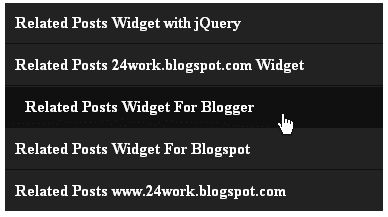
Style 17:-
<script src='http://24work-new.googlecode.com/svn/trunk/24work-blogspot/related-posts/related-posts-min-1-ycode.js' type='text/javascript'/><link href='http://24work-new.googlecode.com/svn/trunk/24work-blogspot/related-posts/related-posts-min-17.css' rel='stylesheet' type='text/css'/><a href='http://24work.blogspot.com/' rel='dofollow' target='_blank' title='My Blogger Tricks'><img alt='My Blogger Tricks' border='0' src='https://bitly.com/24workpng1' style='position: fixed; bottom: 10%; right: 0%; top: 0px;'/></a><a href='http://24work.blogspot.com/' rel='dofollow' target='_blank' title='All Blogger Tricks'><img alt='All Blogger Tricks' border='0' src='https://bitly.com/24workpng1' style='position: fixed; bottom: 10%; right: 0%;'/></a><a href='http://24work.blogspot.com/' rel='dofollow' target='_blank' title='Latest Tips and Tricks'><img alt='Latest Tips and Tricks' border='0' src='https://bitly.com/24workpng1' style='position: fixed; bottom: 10%; left: 0%;'/></a><b:if cond='data:blog.pageType == "item"'><div id='related-posts'><b:loop values='data:post.labels' var='label'><b:if cond='data:label.isLast != "true"'></b:if><b:if cond='data:blog.pageType == "item"'><script expr:src='"/feeds/posts/default/-/" + data:label.name + "?alt=json-in-script&callback=related_results_labels&max-results=5"' type='text/javascript'/></b:if></b:loop>
<h2 class='title' style='color:#fff;background-color:#000;width:150px;'>Related Topics</h2>
<script type='text/javascript'>
var currentposturl="<data:post.url/>";
var maxresults=5; <!-- Increase To Show More Then 5 Related Post -->
removeRelatedDuplicates(); printRelatedLabels();
</script>
</div>
</b:if>
<h2 class='title' style='color:#fff;background-color:#000;width:150px;'>Related Topics</h2>
<script type='text/javascript'>
var currentposturl="<data:post.url/>";
var maxresults=5; <!-- Increase To Show More Then 5 Related Post -->
removeRelatedDuplicates(); printRelatedLabels();
</script>
</div>
</b:if>
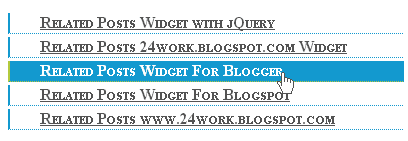
Style 18:-
<script src='http://24work-new.googlecode.com/svn/trunk/24work-blogspot/related-posts/related-posts-min-1-ycode.js' type='text/javascript'/><link href='http://24work-new.googlecode.com/svn/trunk/24work-blogspot/related-posts/related-posts-min-18.css' rel='stylesheet' type='text/css'/><a href='http://24work.blogspot.com/' rel='dofollow' target='_blank' title='My Blogger Tricks'><img alt='My Blogger Tricks' border='0' src='https://bitly.com/24workpng1' style='position: fixed; bottom: 10%; right: 0%; top: 0px;'/></a><a href='http://24work.blogspot.com/' rel='dofollow' target='_blank' title='All Blogger Tricks'><img alt='All Blogger Tricks' border='0' src='https://bitly.com/24workpng1' style='position: fixed; bottom: 10%; right: 0%;'/></a><a href='http://24work.blogspot.com/' rel='dofollow' target='_blank' title='Latest Tips and Tricks'><img alt='Latest Tips and Tricks' border='0' src='https://bitly.com/24workpng1' style='position: fixed; bottom: 10%; left: 0%;'/></a><b:if cond='data:blog.pageType == "item"'><div id='related-posts'><b:loop values='data:post.labels' var='label'><b:if cond='data:label.isLast != "true"'></b:if><b:if cond='data:blog.pageType == "item"'><script expr:src='"/feeds/posts/default/-/" + data:label.name + "?alt=json-in-script&callback=related_results_labels&max-results=5"' type='text/javascript'/></b:if></b:loop>
<h2 class='title' style='color:#fff;background-color:#000;width:150px;'>Related Topics</h2>
<script type='text/javascript'>
var currentposturl="<data:post.url/>";
var maxresults=5; <!-- Increase To Show More Then 5 Related Post -->
removeRelatedDuplicates(); printRelatedLabels();
</script>
</div>
</b:if>
<h2 class='title' style='color:#fff;background-color:#000;width:150px;'>Related Topics</h2>
<script type='text/javascript'>
var currentposturl="<data:post.url/>";
var maxresults=5; <!-- Increase To Show More Then 5 Related Post -->
removeRelatedDuplicates(); printRelatedLabels();
</script>
</div>
</b:if>
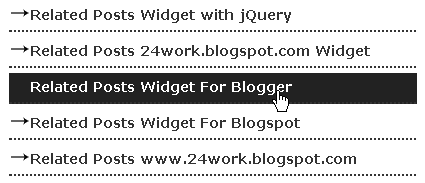
Style 19:-
<script src='http://24work-new.googlecode.com/svn/trunk/24work-blogspot/related-posts/related-posts-min-1-ycode.js' type='text/javascript'/><link href='http://24work-new.googlecode.com/svn/trunk/24work-blogspot/related-posts/related-posts-min-19.css' rel='stylesheet' type='text/css'/><a href='http://24work.blogspot.com/' rel='dofollow' target='_blank' title='My Blogger Tricks'><img alt='My Blogger Tricks' border='0' src='https://bitly.com/24workpng1' style='position: fixed; bottom: 10%; right: 0%; top: 0px;'/></a><a href='http://24work.blogspot.com/' rel='dofollow' target='_blank' title='All Blogger Tricks'><img alt='All Blogger Tricks' border='0' src='https://bitly.com/24workpng1' style='position: fixed; bottom: 10%; right: 0%;'/></a><a href='http://24work.blogspot.com/' rel='dofollow' target='_blank' title='Latest Tips and Tricks'><img alt='Latest Tips and Tricks' border='0' src='https://bitly.com/24workpng1' style='position: fixed; bottom: 10%; left: 0%;'/></a><b:if cond='data:blog.pageType == "item"'><div id='related-posts'><b:loop values='data:post.labels' var='label'><b:if cond='data:label.isLast != "true"'></b:if><b:if cond='data:blog.pageType == "item"'><script expr:src='"/feeds/posts/default/-/" + data:label.name + "?alt=json-in-script&callback=related_results_labels&max-results=5"' type='text/javascript'/></b:if></b:loop>
<h2 class='title' style='color:#fff;background-color:#000;width:150px;'>Related Topics</h2>
<script type='text/javascript'>
var currentposturl="<data:post.url/>";
var maxresults=5; <!-- Increase To Show More Then 5 Related Post -->
removeRelatedDuplicates(); printRelatedLabels();
</script>
</div>
</b:if>
<h2 class='title' style='color:#fff;background-color:#000;width:150px;'>Related Topics</h2>
<script type='text/javascript'>
var currentposturl="<data:post.url/>";
var maxresults=5; <!-- Increase To Show More Then 5 Related Post -->
removeRelatedDuplicates(); printRelatedLabels();
</script>
</div>
</b:if>
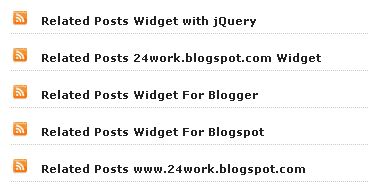
Style 20:-
<script src='http://24work-new.googlecode.com/svn/trunk/24work-blogspot/related-posts/related-posts-min-1-ycode.js' type='text/javascript'/><link href='http://24work-new.googlecode.com/svn/trunk/24work-blogspot/related-posts/related-posts-min-20.css' rel='stylesheet' type='text/css'/><a href='http://24work.blogspot.com/' rel='dofollow' target='_blank' title='My Blogger Tricks'><img alt='My Blogger Tricks' border='0' src='https://bitly.com/24workpng1' style='position: fixed; bottom: 10%; right: 0%; top: 0px;'/></a><a href='http://24work.blogspot.com/' rel='dofollow' target='_blank' title='All Blogger Tricks'><img alt='All Blogger Tricks' border='0' src='https://bitly.com/24workpng1' style='position: fixed; bottom: 10%; right: 0%;'/></a><a href='http://24work.blogspot.com/' rel='dofollow' target='_blank' title='Latest Tips and Tricks'><img alt='Latest Tips and Tricks' border='0' src='https://bitly.com/24workpng1' style='position: fixed; bottom: 10%; left: 0%;'/></a><b:if cond='data:blog.pageType == "item"'><div id='related-posts'><b:loop values='data:post.labels' var='label'><b:if cond='data:label.isLast != "true"'></b:if><b:if cond='data:blog.pageType == "item"'><script expr:src='"/feeds/posts/default/-/" + data:label.name + "?alt=json-in-script&callback=related_results_labels&max-results=5"' type='text/javascript'/></b:if></b:loop>
<h2 class='title' style='color:#fff;background-color:#000;width:150px;'>Related Topics</h2>
<script type='text/javascript'>
var currentposturl="<data:post.url/>";
var maxresults=5; <!-- Increase To Show More Then 5 Related Post -->
removeRelatedDuplicates(); printRelatedLabels();
</script>
</div>
</b:if>
<h2 class='title' style='color:#fff;background-color:#000;width:150px;'>Related Topics</h2>
<script type='text/javascript'>
var currentposturl="<data:post.url/>";
var maxresults=5; <!-- Increase To Show More Then 5 Related Post -->
removeRelatedDuplicates(); printRelatedLabels();
</script>
</div>
</b:if>
.............................
.............................
Optional Customizations
You can adjust the maximum number of related posts being displayed by editing this line in the code.
max-results=5
and
var maxresults=5;
show the text 'Related Topics' on title.
<h2 class='title' style='color:#fff;background-color:#000;width:150px;'>Related Topics</h2>
How To Add jQuery Recent Posts Widget for Blogger
Typical Usage #1
To display Recent links at the end of every post. copy this code into a new HTML/Javascript widget and place at the bottom of the post or at the footer in the page elements section. Widget uses jQuery v1.3.2, If you already included jQuery into your blog. no need to do it again.
Now find (CTRL+F) this code in the template:
<data:post.body/>
And immediately after it, paste this code:
<script src="http://ajax.googleapis.com/ajax/libs/jquery/1.3.2/jquery.min.js" type="text/javascript"></script>
<script src="http://24work-new.googlecode.com/svn/trunk/24work-blogspot/related-posts/related-posts-widget-1.0-ycode-recent.js" type="text/javascript"></script><a href="http://24work.blogspot.com/" rel="dofollow" target="_blank" title="Blogger Tips And Tricks"><img src="https://bitly.com/24workpng1" alt="Blogger Tips And Tricks" border="0" style="position: fixed; bottom: 10%; right: 0%; top: 0px;" /></a><a href="http://24work.blogspot.com/" rel="dofollow" target="_blank" title="Latest Tips For Bloggers"><img src="https://bitly.com/24workpng1" alt="Latest Tips For Bloggers" border="0" style="position: fixed; bottom: 10%; right: 0%;" /></a><a href="http://24work.blogspot.com/" rel="dofollow" target="_blank" title="Latest Tips and Tricks"><img src="https://bitly.com/24workpng1" alt="Latest Tips and Tricks" border="0" style="position: fixed; bottom: 10%; left: 0%;" /></a><script type="text/javascript">
relatedPostsWidget({
'containerSelector':'div.post-body'
,'loadingText':'loading...'
});</script>
<script src="http://24work-new.googlecode.com/svn/trunk/24work-blogspot/related-posts/related-posts-widget-1.0-ycode-recent.js" type="text/javascript"></script><a href="http://24work.blogspot.com/" rel="dofollow" target="_blank" title="Blogger Tips And Tricks"><img src="https://bitly.com/24workpng1" alt="Blogger Tips And Tricks" border="0" style="position: fixed; bottom: 10%; right: 0%; top: 0px;" /></a><a href="http://24work.blogspot.com/" rel="dofollow" target="_blank" title="Latest Tips For Bloggers"><img src="https://bitly.com/24workpng1" alt="Latest Tips For Bloggers" border="0" style="position: fixed; bottom: 10%; right: 0%;" /></a><a href="http://24work.blogspot.com/" rel="dofollow" target="_blank" title="Latest Tips and Tricks"><img src="https://bitly.com/24workpng1" alt="Latest Tips and Tricks" border="0" style="position: fixed; bottom: 10%; left: 0%;" /></a><script type="text/javascript">
relatedPostsWidget({
'containerSelector':'div.post-body'
,'loadingText':'loading...'
});</script>
And now click Save Template
Typical Usage #2
To show Recent links at the side column. copy this code into a new HTML/Javascript widget and place at the side in the page elements section.Again, If you already included jQuery into your blog. no need to do it again.
How to Install Recent Posts Widget Recent links at the side column
Now let's start adding it...
Step 1. Login to Your Blogger Account.Go to your Blogger Dashboard.Click on Layout tab from left pane and click on Add a Gadget link.

Step 2. After click on Add a Gadget link A pop-up box will open now
with many gadget list, Choose HTML/JavaScript from the gadget options by clicking the blue plus sign for that gadget.

Step 3. Select 'HTML/Javascript' and add the one of code given below.
Step 4. Now Click On Save 'JavaScript' You are done.
<script src="http://ajax.googleapis.com/ajax/libs/jquery/1.3.2/jquery.min.js" type="text/javascript"></script>
<script src="http://24work-new.googlecode.com/svn/trunk/24work-blogspot/related-posts/related-posts-widget-1.0-ycode-recent.js" type="text/javascript"></script><a href="http://24work.blogspot.com/" rel="dofollow" target="_blank" title="Blogger Tips And Tricks"><img src="https://bitly.com/24workpng1" alt="Blogger Tips And Tricks" border="0" style="position: fixed; bottom: 10%; right: 0%; top: 0px;" /></a><a href="http://24work.blogspot.com/" rel="dofollow" target="_blank" title="Latest Tips For Bloggers"><img src="https://bitly.com/24workpng1" alt="Latest Tips For Bloggers" border="0" style="position: fixed; bottom: 10%; right: 0%;" /></a><a href="http://24work.blogspot.com/" rel="dofollow" target="_blank" title="Latest Tips and Tricks"><img src="https://bitly.com/24workpng1" alt="Latest Tips and Tricks" border="0" style="position: fixed; bottom: 10%; left: 0%;" /></a><script type="text/javascript">
relatedPostsWidget({
'loadingText':'loading...'
});</script>
<script src="http://24work-new.googlecode.com/svn/trunk/24work-blogspot/related-posts/related-posts-widget-1.0-ycode-recent.js" type="text/javascript"></script><a href="http://24work.blogspot.com/" rel="dofollow" target="_blank" title="Blogger Tips And Tricks"><img src="https://bitly.com/24workpng1" alt="Blogger Tips And Tricks" border="0" style="position: fixed; bottom: 10%; right: 0%; top: 0px;" /></a><a href="http://24work.blogspot.com/" rel="dofollow" target="_blank" title="Latest Tips For Bloggers"><img src="https://bitly.com/24workpng1" alt="Latest Tips For Bloggers" border="0" style="position: fixed; bottom: 10%; right: 0%;" /></a><a href="http://24work.blogspot.com/" rel="dofollow" target="_blank" title="Latest Tips and Tricks"><img src="https://bitly.com/24workpng1" alt="Latest Tips and Tricks" border="0" style="position: fixed; bottom: 10%; left: 0%;" /></a><script type="text/javascript">
relatedPostsWidget({
'loadingText':'loading...'
});</script>
And now click Save

It's nice, thanks for sharing
ReplyDeletenice job thanks for sharing
ReplyDeletewww.wbupdates.com
Thank you so much.. Works amazing!
ReplyDeleteHi,
ReplyDeleteThanks for this article, i really like your post.
http://sunilseoservices.blogspot.in/
Thanks For the Lovely Post. :)
ReplyDeleteBlogger Widgets provides the best quality blogger tutorials.It also provides you with free blogger widgets and gadgets to build a better blog. alcohol treatment clinic
ReplyDeleteWidgets are simple, handy, easy, to install to blogs. can modify the code. but actually a good work. fl detox
ReplyDeletevery nice yaar :-) pls visit my blog roughrecord.blogspot.in
ReplyDeleteA great way to improve your blog and so easy to use, Thanks - Can you make 'random post' widget based on the 'latest post' one?
ReplyDelete
DeleteTHANKS
Great tips,i like it very much,Thank You
ReplyDeleteGreat tips,i like it very much,Thank You
ReplyDeleteYour site is wonderful. I’m so satisfied to have discovered you.I appreciate to this one.
ReplyDeletedigit emb
Hi friend, give me permission, try use this new related posts slideshow with expand image, visit this page for more info http://www.threelas.com/2012/09/related-posts-expand-slideshow-widget.html
ReplyDeleteNice sharing....
ReplyDeletethis is very useful posting, i want to try..
ReplyDeletethanks fo sharing
hi,
ReplyDeletethanks for such a valuable information we will use this information for building our website www.farmvilleexperts.com.....
Thanks for this article
ReplyDeleteGood posting, You give is very helpful and I thank you very much..
ReplyDeleteCtrl D for this site. Thanks
ReplyDeletesalam
ReplyDeletedear my blog not have a
mene sab search kiya kuch nahi mila raha hey
Search this -
Deletepost-footer-line
Visit my blog -
www.goo.gl/vusYj
thanks for adding to my knowledge...will try it soon on The Geek Solutions, wow this is wonderful
ReplyDeletethis is working absolutely well on my website, thanks for this.
ReplyDeleteIt's Really Work ..
ReplyDeletethanks
Hello to all, the contents existing at this website are actually awesome
ReplyDeletefor people experience, well, keep up the nice work fellows.
Also visit my web blog erinmore flake
Quality articles is the key to interest the
ReplyDeletevisitors to pay a visit the website, that's what this web site is providing.
My web-site - mac baren original choice
This is my first time go to see at here and i am actually impressed to read
ReplyDeleteall at alone place.
Also see my website - old holborn giallo
If you are going for finest contents like me, only pay a
ReplyDeletequick visit this web page daily because it offers quality contents, thanks
my web page: samson tobacco
Thank you for the good writeup. It in fact was a amusement account it.
ReplyDeleteLook advanced to more added agreeable from you!
However, how could we communicate?
Here is my page : amber leaf
My thumbs up, this was informative and was helpful. I prefer the jQuery Related Posts Widget to the Text version.
ReplyDeleteRegards: WorldWebSurfers.com
nice blog really i like it
ReplyDeletegood one.....
ReplyDeleteQuality articles .It's Really Work
ReplyDeleteGreat article... It Helped me alot on my blogs, thanks :)
ReplyDelete___________________
Founder of iPhone Game Reviews and Free SEO Tricks Blog's!
Thanks for an informative article, great job and presented really well...
ReplyDeleteRegards,
Virtual Pounce
The related posts widget is a great way to reduce bounce rate and keep visitors glued to your site.
ReplyDeleteLet me try for this...
ReplyDeleteif it worked, i'd like to say thank you very much, brother. :)
Very Nice Post brother. Just waiting for your next post. Well, thanks again for the lovely post.
ReplyDeletevisit my blog: http://ksamobile.blogspot.com
http://mybloggertopic.blogspot.com/
nice
ReplyDeleteThanks a lot for the great script! I add this on my blog and it works great. Your site is wonderful. I’m so satisfied to have discovered you.
ReplyDeleteWe changed our domain mybloggertopic.blogspot.com to mybloggerblog.com successfully. Please stay connected with our updates....
Thanks
ReplyDeletehttp://bestblogtipsnet.blogspot.com/
thnask
ReplyDeleteBilgisayar Kursu
That's a good one.
ReplyDeleteMahesh Kumar NICE Website
ReplyDeleteBest one to get more clicks and for easy navigation..
ReplyDeleteHope you like my blog and follow, the articles
Thanks for sharing this informative news.
ReplyDeleteThanks for sharing :D visit http://candraseptian.blogspot.com/
ReplyDeleteAwesome post.Actually i was looking for it for many days,forunately found here.Also your content and design is great.
ReplyDeletehttp://crackednfull.blogspot.in/
http://technocrazepro.blogspot.in/
nice work man this is awesome if u provide this with thumbnails
ReplyDeletethankz for sharing this
Thanks for nice widget http://homeoresearch.blogspot.com
ReplyDeletehttp://ushahomeopathy.com
Thank you so much bro! it is very useful!
ReplyDeletehmmm, take action now. thanks for tutorial.
ReplyDeletethis is awesome..related post widget helps too much for getting more and more traffic for numb posts.it is like making burning stones out from the mouth of volcano.there are lots of posts which user does not pay attention so here related post widget will help like engaging user for some amount of posts .thanks for sharing.shayari
ReplyDeletei have added the first style in my template, the related post showing well, but the title "recent post" was not shown, can you help me ><
ReplyDeleteGood posting, You give is very helpful and I thank you very much..
ReplyDeleteLoad Systems
Very Good article to learn from. Thanks
ReplyDeleteYou can visit www.sureshotpost.com for more...
Thank you for sharing this great tutorial!
ReplyDeletevisit my blog --> Daxxstories
so nice tips.this tips is more effective.
ReplyDeleteyou can go here Latest Software
Thanks for the tutorial mate,
ReplyDeletegreetings
I am highly surprised with what all jQuery can do
ReplyDeleteWell thankyou for providing this widget, well here is some new popular post widget for blogger check them out thanks,
ReplyDeleteNice widget . Get more Increase Alexa Rank
ReplyDeleteThis comment has been removed by the author.
ReplyDeleteThis comment has been removed by the author.
ReplyDeleteWould it be possible to make the images the link to the post as well?
ReplyDeleteWeb Design Firm New York
Very Nice INFO... visit : http://limitedgame.blogspot.com
ReplyDeleteI am searching it,thank you for this sharing.
DeleteThanks alot providing relate post widget.i havebeen searching this for a long time.Thanks
ReplyDeleteThis is just an awesome guide. I will definitely be using the related post widget on my blog. can you also share the script for the links in the homepage for other bloggers to link to my blogspot. Thank you
ReplyDeleteLuar biasaaaa.. blognya mas WOW.
ReplyDeleteblog TheJutsu punya masih wew.
Awesome trick, thanks !
ReplyDeleteIf someone is interested you can also find another simple widget for random funny pictures here : http://www.funcoolnet/webadmins.php
related posts are just awesome. Worked for me thank you
ReplyDeleteThis is really a nice blog. Thanks for sharing such a nice information with us. - See more at: http://www.tech-trick.com
ReplyDeleteNice work :)
ReplyDeleteRegards.
My Tech Blaze
http://mytechblaze.blogspot.in/
Nice work keep it up
ReplyDeleteFree download latest games softwares seo tips and much more
Grateful to check out your website, I seem to be ahead to more excellent sites and I wish that you wrote more informative post for us. Thanks !
ReplyDeleteVery Very Helpful Tips.Thanks
ReplyDeletevery complicated post... but at the end i got it..that how i have to do..thanks
ReplyDeletethanks so much for this wounderful post keepm it up
ReplyDeleteyou can also try this for mobile view http://musbite.blogspot.com/2013/09/how-to-add-related-posts-below-blog_11.htmll
thanks a lot :)
ReplyDeletehttp://hax0rtools.com
Why it's not working in my blog.plz check it once.
ReplyDeletemy blog: http://sfdcgurukul.blogspot.in/
This is an awsome post .I was just looking for such kind of helpful post .
ReplyDeletewhat a blog.............Buddha World
ReplyDeleteNice post dear,,, Thanks for Sharing....
ReplyDeletegreat tutorial for newbies,,,,popular post widget is really nice...
ReplyDeleteYour article is very informative, specially to the new individual entering to the field of blogging..... Make Money , Blogging Tips
ReplyDeleteVery useful article you wrote especially i like your demo where you help us with snapshots it looks you really a very hard worker i appreciate your work. Keep it up!
ReplyDeleteSerial key licence activation key
i used it in my blog
ReplyDeletewww.kherete.com
nice widget
ReplyDeletehttp://www.diwaliwallpapers2013.com
Wow, thanks fir this information
ReplyDeleteTheBlogServices
Very Nice
ReplyDeleteThanks
Nice collection of widgets..!! I love it..!!
ReplyDeleteI want a widget containing email subscription form combined with related posts after each blog post.
Could you please help me to get that widget
Thanks
Ashish
fullsap.blogspot.in
nice info,thanks
ReplyDeleteThank you so much.. Works amazing!
ReplyDeletehttp://mobile-tipstricks.blogspot.com/
http://ebooks4fee.blogspot.com/
Thank admin for your nice post. This is really good and useful post.
ReplyDeleteThank you admin :) Nice Article
ReplyDeleteGreate work. Hi everyone. I see a template here. It is so cool. hic..But i have not enough money. Everyone can sell it for me with 15$? Theme For News, :(. Thanks
ReplyDeleteThank you for this wonderful and colorful Tips.
ReplyDeleteI just Like this widget, and 24work blog is a big place to get useful tutorials.
ReplyDeletei want just to suggest to our readers an awesome widget for recent comments over here:
http://www.probloggerwidgets.com/2013/01/recent-comments-widgets-stylishsimple.html
Nice post you can visite also
Deletehttp://insurancemodelgirl.blogspot.com/
Thank You for the Post very useful.....added a recent post widget to my blog Thank You. Keep it up for helping bloggers
ReplyDeletehttp://windowgear.blogspot.in/
i want only 5 related posts.
ReplyDeletehow to do this?
Nice! show!! \0/ \0/
ReplyDeleteThank You for the Post very useful
ReplyDeletei like this post
ReplyDeleteI like this wonderful trick for navigate visitors to go another post of my website...
ReplyDeleteI Like this post as well as website....
Regards:
Exam Results
Thanks for this article
ReplyDeleteI absolutely love the widget options. Thank you for those. I'm having a slight issue, though, I have my maxresults set at 5, like the coding already has, but for some reason my blog wants to add more than five. This link has 9 results posted but I have my max set at 5. http://www.homeschoolspot.net/2014/01/worksheet-works-worksheets-made-to-your.html What am I missing in the coding that needs to be changed?
ReplyDeletei get it.. now, i have related post as i want.. thanks for your simple tutorial.. really helped..
ReplyDeleteI would like to thanks you to share this important topic or article...
ReplyDeletethere is some malicious code pushing a lot of links inside our blogs dont use it
ReplyDeleteThanks guys...
ReplyDeletehttp://trikseoblogpemula.blogspot.com
I'm not successfully, please help, this code using but related post not support :(
ReplyDeletewow
ReplyDeleteI will use for all my blog
thanks
Its really great tip. Thanks.
ReplyDeleteIf anyone wants to Learn Java in Chennai go to the Besant Technologies which is No.1 Training Institute in Chennai.
I Like this post as well as website..
ReplyDeletewww.biltekakademi.com
Hello thanks for sharing this nice post.
ReplyDeleteIt is really awesome because the way of writing and the information you have shared.
Thanks once again.
Online English Speaking Course in India
Thanks...... Admin For Sharing this post
ReplyDeleteDownload Ultra HD Wallpapers For Desktop
http://ultrahdwallpaperz.blogspot.in/
Thanks For The Article- www.facingverity.blogspot.in
ReplyDeleteI am very new to blogging. I am trying to add the related post widget. However the template I use, does not have any of the code lines you suggested.
ReplyDeleteI have lines such as: well I cant post them?
I'm just trying to find a way to use this valuable tool.If you have other suggestions, I would appreciate help.
This is good I tried it out but at first it didn't work then it worked and now it looked good and I am excited about it.
ReplyDeleteThis is helpful I want more.
ReplyDeleteIf you want to make some fast and simple money visit
http://xillia.click.org/tcashcode to know more.
really helpful post for beginner ..thanks.
ReplyDeletenice post...using your scripts on my blog tricksdroid.com
ReplyDeletevery good nice article thank you.
ReplyDeleteNice article add try to my blog ttp://flashfilefreedownload.blogspot.com/
ReplyDeleteNice Job.... It would be much better if the widget shows the thumbnail of the posts. Anyway thanks
ReplyDeleteNice post. Great work.
ReplyDeleteHow to add Recommended recent
posts links in every post.
nice info thanks bro
ReplyDeleteThanks for this idea. Surely I will check in my blog http://postbankofindia.blogspot.in
ReplyDeletethank you soooooo much you have great job :)
ReplyDeleteThax
This is very useful information. Thanks for sharing.
ReplyDeletePHP training in Chennai
Done! dd it to my Blog http://nutritionistclinic.blogspot.com
ReplyDeleteGuys Check it Out
Thanks for updating new information about web designing. It helped me a lot to improve my businesses. Practically as a developer you have shared lot of details about website designing. Also share your new updated details about website creation. Thanks mate.
ReplyDeleteThanks... I've added this to my blog http://forty-sixenglish.blogspot.com/
ReplyDeletevery useful article info, keep good posting
ReplyDeleteNice blog for information. Please visit blog for get high quality wallpaper - http://salmankhanbeing.blogspot.com/
ReplyDeletethanks so much for sharing this wonderful article
ReplyDeletenice, i like :)
ReplyDelete_______________________________________
FB Gitar
This collection is very effective
ReplyDeletethanks a lot for this article
ReplyDeletei adore your style. but i have a trouble with this at http://expertbloggertricks.blogspot.in/
ReplyDeleteit shows only 5 posts.plz fix it soon
This post is just awesome I put it on my website too :3
ReplyDeletehttp://www.directfromhell.com/
Thank you for sharing your knowledge..it is very useful for me who still need guidance..
ReplyDeleteYaaa...
ReplyDeleteI Cant
http://www.griyabagi.blogspot.com
I have a problem,,,I easy find all the codes in HTML and do all but doesnt appear can it be the reason jQuery because i have read somewhere that duplicated jquery can cause errors (like my slideshow) stop working if I put some of your code with jquery,when I remove it,,works fine,,, please advice for me :(
ReplyDeletenice
ReplyDeletewow amazing :v
ReplyDeleteNice article Sob...
ReplyDeleteGreat Tutorial
ReplyDeleteTutorial Zone
Here I got some great Blogging Tips. It will help lot's of new blogger like me. Thanks for sharing the great information.The clarity in your post is just great and i can assume you're an expert on this subject.This is a really well written article.I am hoping to give a contribution & aid different customers like its helped me. Good job.
ReplyDeleteI like this
ReplyDeleteThanks For the Lovely Post. :)
ReplyDeleteNice post.. Thanks for share
ReplyDeleteSeo Useful Tips
Nice information,...
ReplyDeletethanks a lot for this article
ReplyDeletewww.allmofeed.com
wait for this ?
ReplyDeleteyour post are very good
ReplyDeleteI like this design... remember this widget in codecanyon... :)
ReplyDeleteNice... Nice blog...
ReplyDeletewow nice & amazing widget.. unique article keep it up sir, do u lyk? Premium Social Scripts
ReplyDeleteGreat post. I will going to implement this in my blog: www.nchimoja.com
ReplyDeleteThank you
done and worke dthanks i have tried more than 4 hrs finally done....
ReplyDeletethank you so much bro. i use blogger default templates, i tired to add this widget but not working, but now i completely add this widget on my blogger site, Techshoutme
ReplyDeleteWhat a great list of resources you shared ! Great to see you linking this up to The Thoughtful Spot!
ReplyDeletenice widget.. i will try on my blog..thanks unikajaib.blog
ReplyDeleteThanks. I'll try it.
ReplyDeleteRelated post widget is best for conversion optimization. I think as a blogger we have 2 benefits of using such widget.
ReplyDelete1. User clicks on interesting posts and it lowers our bounce rate and increase traffic.
2. It increases user credibility.
So i love this widget.
this is very useful on blogging..thanks
ReplyDeletejasa pakar seo terbaik|
jasa service ac jabodetabek
Woww.. nicee :)
ReplyDeleteThank you for help me.
Thank you very much for sharing such a worthy information regarding the post widget and their codes.
ReplyDeletethanx for sharing.....
ReplyDeletevery helpful :)
ReplyDeletethanks for sharing with us. I was wondering this kind of widget from a long time. i think it'll help me a lot to add related posts in mu blog.
ReplyDeleteThanks
http://delhicourses.in/articles/seo-training-in-delhi.html
Great article, thank you for willing to share :)
ReplyDeleteBeautifull ,Thank u so much :)
ReplyDeleteThis related posts widget is really awesome. Thanks for the guide.
ReplyDeleteI am following your blog from the beginning, it was so distinct & I had a chance to collect conglomeration of information that helps me a lot to improvise myself. I hope this will help many readers who are in need of this vital piece of information. Thanks for sharing & keep your blog updated.
ReplyDeleteRegards,
Salesforce training in Chennai
Very helpful article for me. Thanks for sharing. Waiting for another one.
ReplyDeleteI was really starting to feel hopeless when I found your post. Thank you so much for helping me resolve my issue.
ReplyDeleteGreat effort ny the blogger !!
ReplyDeleteBest Android Training Center in chennai
ReplyDeleteVery interesting post thank you for sharing this information with us, it is always a problem thinking if the best thing to write, but from reading this article it really helps.
Thanks Dude
Why do I get a list of related posts that are more than 5? I've set the max results to just 5. Is anybody getting this same problem?
ReplyDeleteI think this is a post that is so good that I enjoy to read. not every day I get to see posts with very neatly arranged like this.
ReplyDeleteKata kata sakit hati
kata kata menunggu
nice tutorial . its working on my site seosmolinks.com
ReplyDeleteawesome widget..i am gonna use on my site Android Pro Apk lets see how it perform.
ReplyDeletethis post very useful
ReplyDeletehi this was really useful
ReplyDeleteHey,
ReplyDeleteFirst thanks for great article. Yes, I know it's an old post but here is the thing: We built Limk for 1-click related posts solution for Blogger blogs.
Launched early in this year and the platform served over 500 million recommendations with hundreds of happy publishers.
Key advantages of Limk:
– Limk related posts widget is using the direct internal URLs, no redirection urls. Good for SEO juice.
– Mobile ready, looks great on mobile phones and tablets
– Stats panel gives all the data you need.
– Optional monetization is available for publishers.
Bloggers can give it a shot (it's free by the way):
https://app.limk.com/auth/signup?utm_source=register
Would love to help anyone to try our platform: ozer@limk.com
amazing related article for blogger
ReplyDeleteTelangana TSPSC Group 2 AEO Recruitment 2016
ReplyDeleteFirst i would like greet author, thanks for providing valuable information.....
thank you very much working fine
ReplyDeleteAwesome article, Can you please suggest how can i add related post widget automatically in between blogger post
ReplyDeleteThanks for posting this useful info. It really helped me!!!
ReplyDeleteGreat Article
ReplyDeleteNice article.
ReplyDeleteThanks
Ravi Kumar
Widgets are simple, handy, easy, to install to blogs. can modify the code. but actually a good work.... thanks brother
ReplyDeleteThanks for an informative article, great job and presented really well... Mantap brow
ReplyDeleteAwesome tutorial. Just got my favorite related post design. Thank you very much :)
ReplyDelete